How it works
One charge, start to finish
Find a charger that fits your car, check it, choose a connector and see its price, watch the session, pay from your wallet and keep the receipt. Six steps, the same in the walkthrough below.
Six steps
From “where do I charge?” to a receipt
Step 1: Find
Filter the map for a free connector that fits your car.
Step 2: Check
Connectors, prices, reliability and reviews, with the status the operator last reported.
Step 3: Start
Choose the connector and your car, see its price, confirm. Starting needs a connection: every start is authorised in real time.
Step 4: Charge
Energy, power and cost so far; stop at a target % or a budget.
Step 5: Pay
The estimate was reserved; the real cost is taken and the rest released. Company car? Your employer may pay instead.
Step 6: Receipt
Price lines and VAT, shared as a PDF or to WhatsApp.
One charge, step by step
Find a charger that fits your car
Filter by connector, power, availability and reliability. While the map is open it re-reads each charger’s status every 30 seconds and shows when that status was last updated.
In the app: A charger map and list with live status by colour, glyph and words, refreshed every 30 seconds.
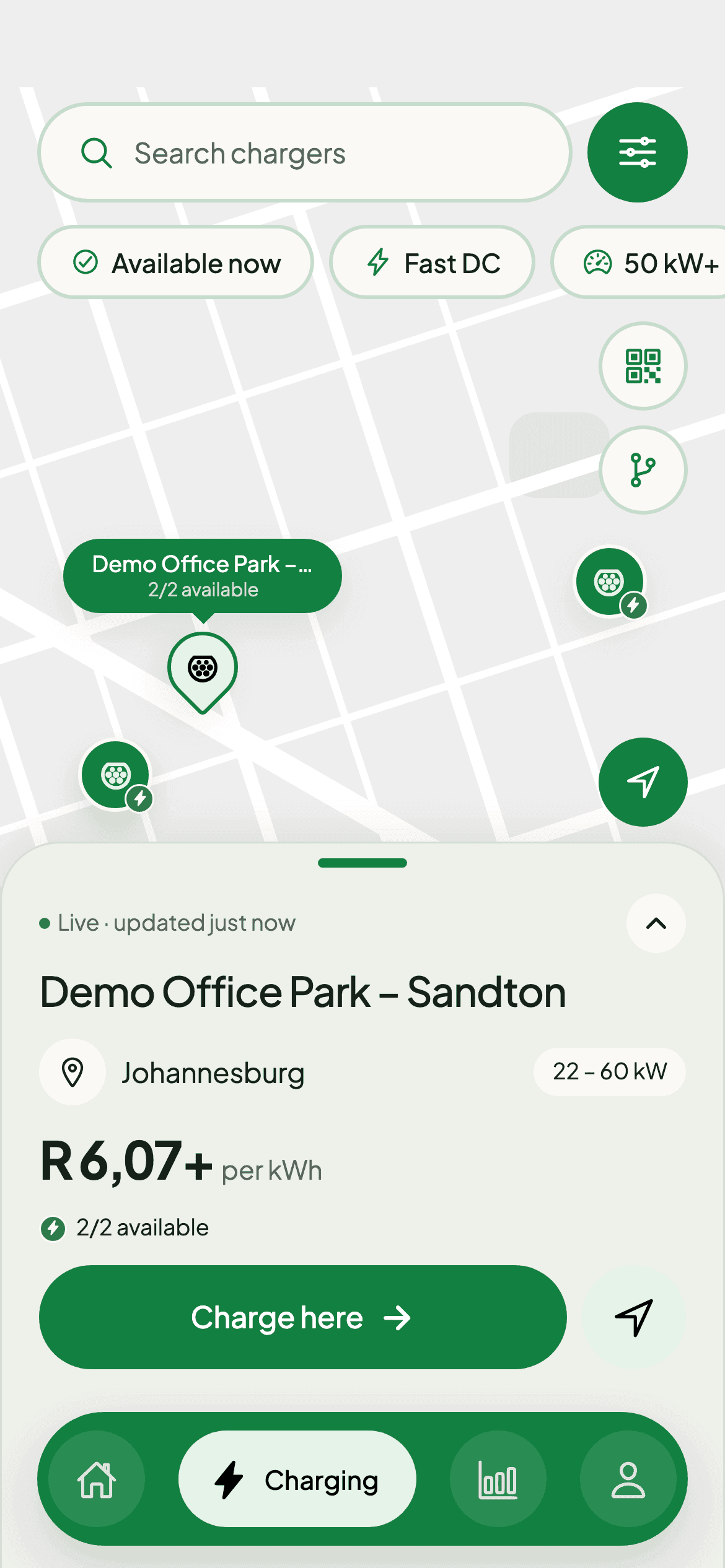
Find a charger: free bays and the price per kWh, before you drive. No session running.
If something goes wrong
When a charge does not start, or you have no data
If charging does not start
The start sheet shows “Failed” or “Lost contact” with a Try again button. Open the failed session to get help: it carries the reference support needs.
Starting needs a connection
Every start is authorised in real time, so the charger, its operator and the platform must be reachable. Plan and save long trips where you have signal.
Company-paid charging
If your employer pays, public sessions bill the company and home sessions are paid back. See what to do before your first charge.
New to electric?
What to know before your first public charge
Bought an EV, or thinking about one? This is what the app helps you with from day one.
Know your plug
Many EVs sold here use CCS2 for fast DC charging and Type 2 for AC. Check your car’s manual or charge port, then filter the map for that plug.
AC is slow, DC is fast
AC suits a long stop or overnight; DC suits a road trip. Filter by AC or DC and by minimum power.
Charge to 80% on the road
Fast charging slows sharply above 80%, so the route planner prefers short stops to 80%.
See the price first
Each connector shows its price before you start.
Home or public
With a driveway and a home charger, schedule it in the window you choose. Without one, plan regular stops at public sites near home or work.
Try your routes first
Still deciding? Plan the trips you actually drive with your future car’s range and see where the stops would fall.
What you can rely on
No surprises at the charger
“Charging” means charging
The app shows “Sending”, then “Waiting for charger”, and only says “Charging” once the charger confirms.
The estimate is reserved
Starting reserves the estimated cost; the real cost is taken when the charge record arrives and the rest is released.
Every line on the receipt
Energy, time, price lines and VAT, with a button to report an overcharge.
Behind the tap (optional)
How a tap in the app reaches the charger
For the curious. Select a part of the diagram to read what it does.
How a tap in the app reaches the charger
The driver app talks only to the EMP. The EMP reaches charging operators through Getz Hub over OCPI, and never talks to a charger directly.
The EMP platform
Turns the operator’s cost into the driver’s price, reserves the estimated cost in the wallet, authorises every start in real time and rates the final charge record into a receipt.
Use Tab to reach the diagram, then the arrow keys to move between parts.
Charge with DriEv near you
DriEv is coming soon to the App Store and Google Play. Join and Getz will tell you when it is ready for your phone.